

Overview
Labels tag every request for attribution: which team, feature, job, or environment produced the traffic. A request can be labelled two ways, and both can apply at once:- Tagging headers — labels extracted from configured HTTP headers on each request.
- API key labels — labels bound to a managed API key, applied to every request authenticated with it.
API key labels
Assign labels when creating a key in the admin dashboard:API Keys -> Create API Key -> Labels
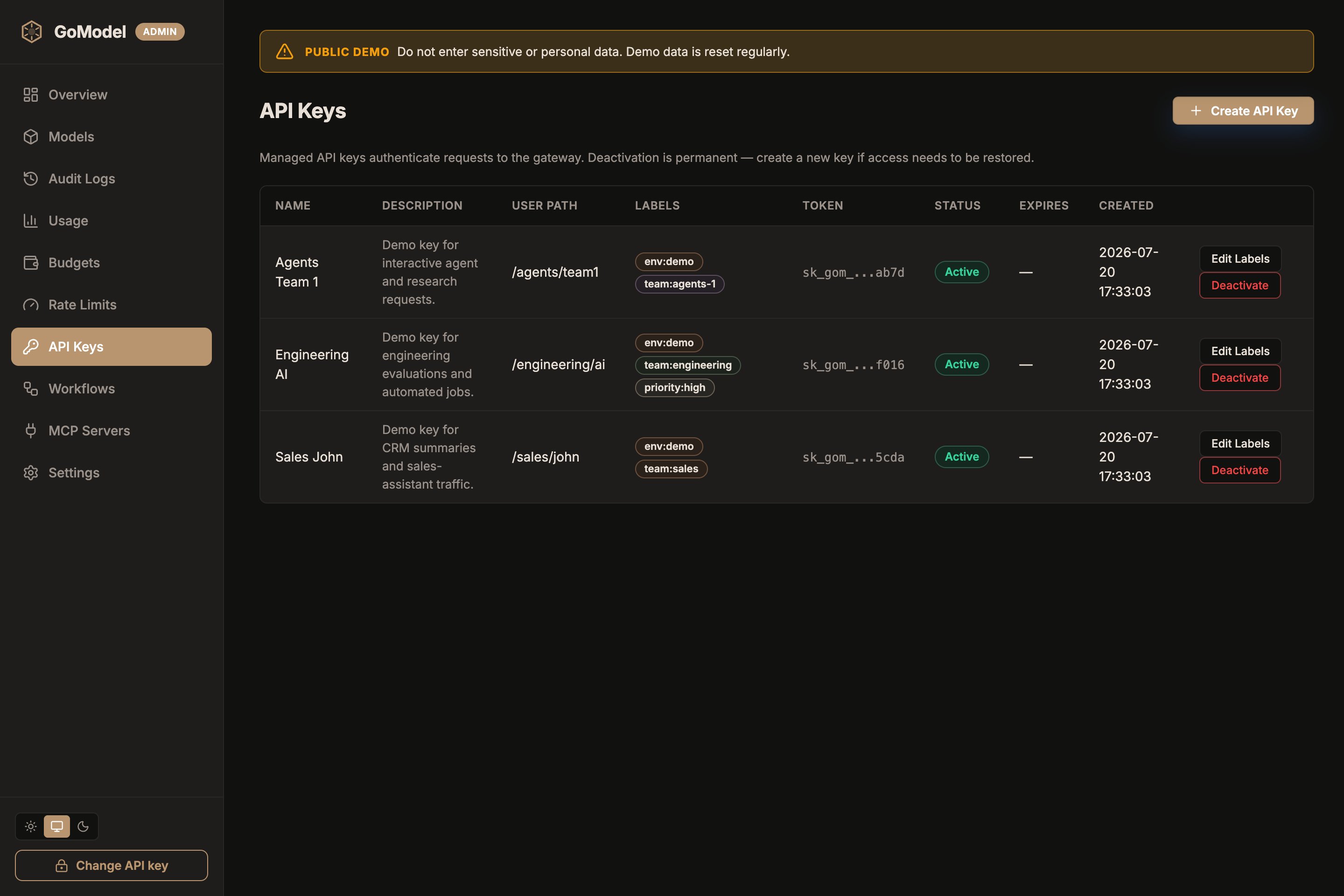
API Keys -> Edit Labels) or via the admin API:
[] to remove all labels. Changes
apply to new requests immediately on the instance that served the update and
within about a minute on other replicas (keys refresh from storage in the
background).
Tagging headers
Tagging rules name headers whose values carry labels. Manage them in the dashboard (Settings -> Tagging based on headers) or declare them as
infrastructure-as-code:
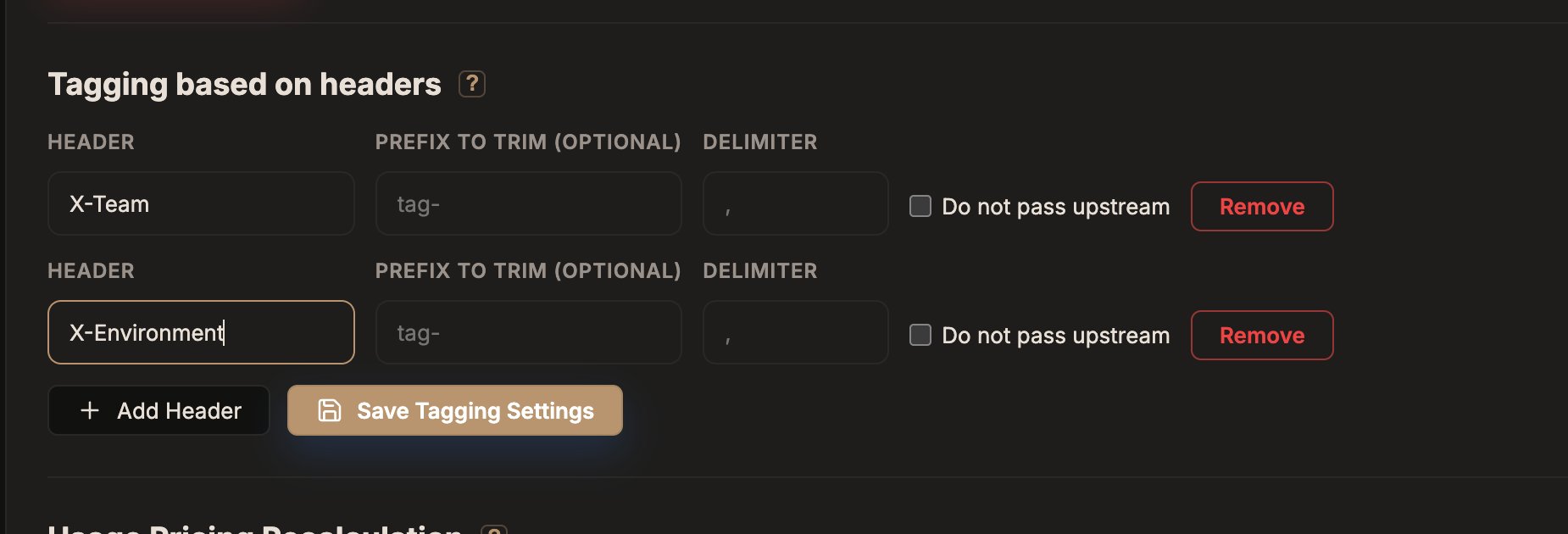
X-Team), optionally set a prefix to trim and a delimiter, then Save
Tagging Settings. Check Do not pass upstream for headers that should be
stripped before the request reaches the provider.
config.yaml
config.yaml or env are read-only in the dashboard.
Credential-bearing headers (Authorization, Cookie, API-key headers) are
rejected as tagging sources.
do_not_pass strips the header before forwarding on passthrough and realtime
routes; translated routes never forward client headers anyway.
Where labels show up
- Usage dashboard — the usage page shows a by-label breakdown
(
GET /admin/usage/labels). A request with several labels counts once under each of them. - Request log — label chips per request, filterable with the
labelquery param onGET /admin/usage/log. - Audit logs — recorded under
data.labelson each entry (audit logging is enabled by default). - API keys page — each key’s labels are listed alongside its user path.
- Budgets — a budget can be scoped to a label, capping the spend of every request carrying it. See Budgets.