

Overview
Budgets let you set spend limits for auser_path subtree or a request
label. GoModel evaluates them from tracked usage cost
records and blocks matching requests when a limit has already been spent.
Every budget has a scope that names what it limits:
Use budgets when you want limits such as:
/team/alphacan spend$10per day/team/alphacan spend$50per week/has a global monthly limit- everything labelled
Mobile-App-iOScan spend$500per month
Budget enforcement runs only when budgets are globally enabled and the active
workflow has Budget enabled. The Budget workflow control is enabled by default
when the global budget feature is on.
Enable budgets
Budgets are enabled by default:Create budgets
You can create budgets in the dashboard: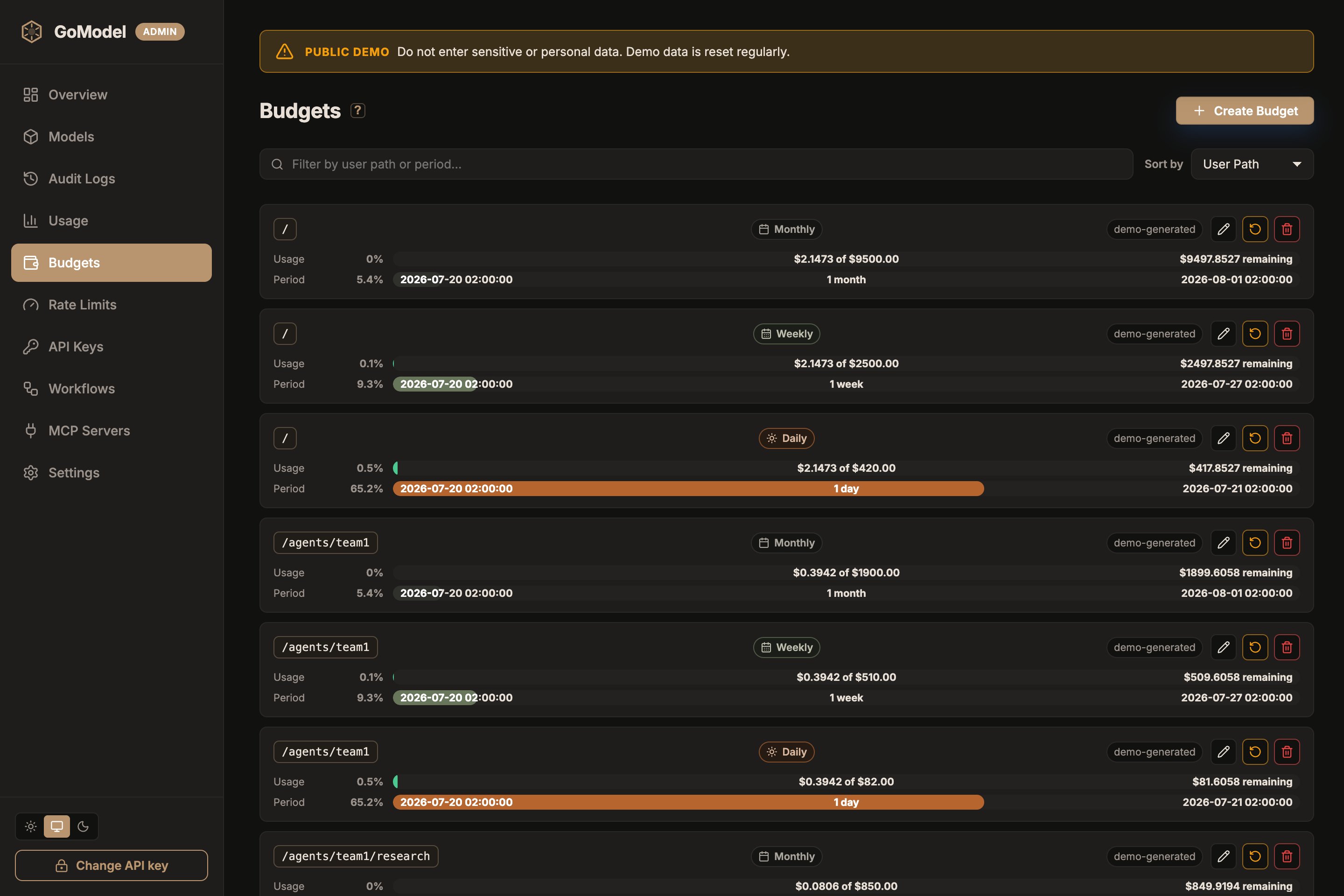
label chip next to the
period. Dashboard-created budgets are marked as manual. Budgets loaded from
YAML or environment variables are marked as config.
You can also seed budgets from YAML:
SET_BUDGET_ becomes a user path. Use double underscores
(__) between path segments; single underscores remain part of a segment:
SET_BUDGET_TEAM__ALPHA->/team/alphaSET_BUDGET_USER_123->/user_123SET_BUDGET_->/
__ segment value.
Label budgets have no environment-variable form. Labels are matched verbatim,
including their casing, and may contain characters that environment variable
names cannot express. Declare them under
budgets.labels in YAML or create
them in the dashboard or admin API.
The Seconds column is the internal period identifier. Standard periods use the
configured reset-anchor logic; for example,
monthly is stored as 2592000 but
resets on calendar month anchors and clamps the reset day to shorter months.
Only custom period_seconds values behave as fixed-second windows.
For custom windows, set period_seconds in YAML:
How matching works
Budget paths apply to the configured path and its descendants:- budget path
/team - request path
/team/app - result: budget applies
- budget path
/team - request path
/team-alpha - result: budget does not apply
-
budget label
Mobile-App-iOS -
request labels
["Mobile-App-iOS", "prod"] - result: budget applies
-
budget label
Mobile-App-iOS -
request labels
["mobile-app-ios"] - result: budget does not apply
Workflow enforcement
The active workflow controls whether budget checks run for a request. In a workflow payload:user_path subtree. See Workflows for matching
precedence.
Response cache hits can return before budget enforcement. If a cached response
exists, GoModel can serve it without spending additional provider cost.
Reset windows
Budget reset anchors are configured in the dashboard under:31
runs on April 30 and on February 28 or 29.
Editing a budget changes the limit but does not reset the current period. Use
the row-level Reset action to start a new period for one budget, or
Settings -> Reset All Budgets to reset all budgets.
Admin API
Budget management is also available through the admin API:scope, subject,
and period; user_path is accepted as a shorthand spelling of the subject for
user-path budgets: